
yycode x Claude Code VS Code Graphical Operation Tutorial
Prerequisites
- Node.js environment installation has been completed
- Claude Code is installed (
npm install -g @anthropic-ai/claude-code)
1. Install VS Code
Go to the VS Code official website and download the installer for your platform.
Mac users should choose the correct chip architecture:
- ARM64: M1 / M2 / M3 / M4 chips
- x64: Intel chips
2. Install the Claude Code for VS Code Extension
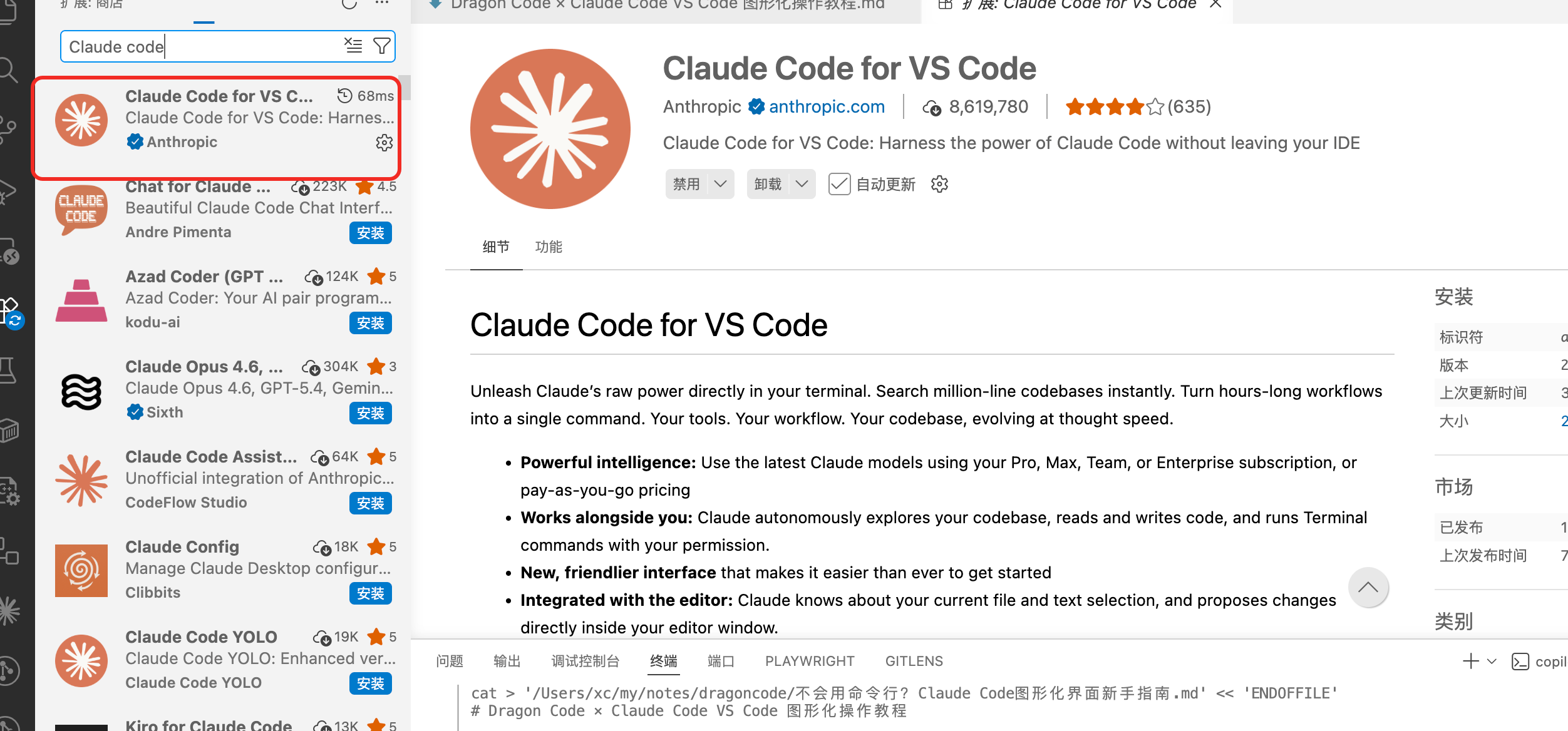
Open VS Code, click Extensions in the left sidebar, search for Claude Code for VS Code, make sure the publisher is Anthropic, then click Install.
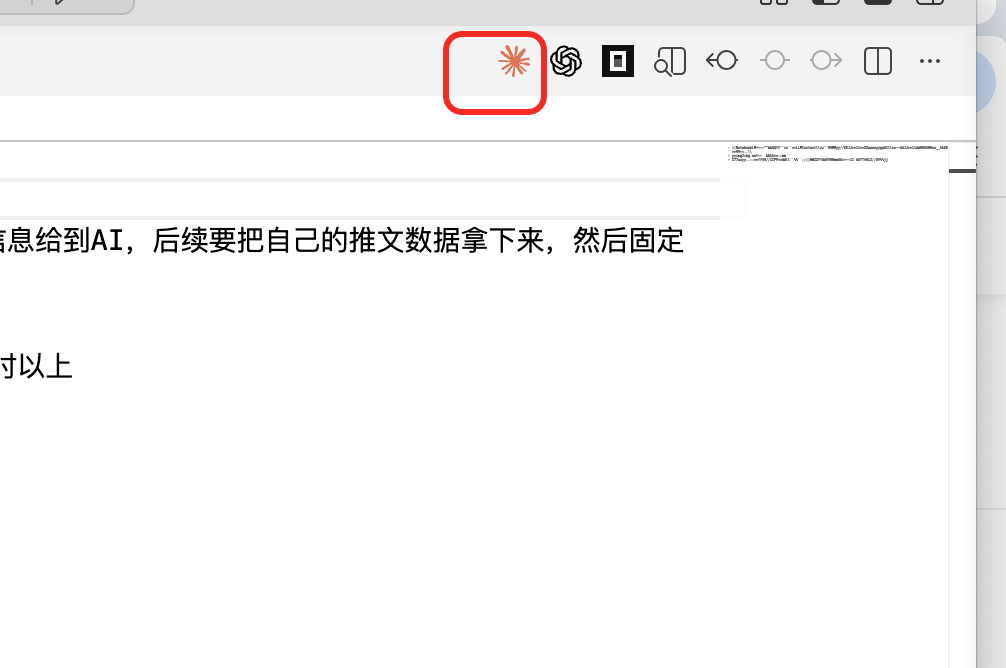
After installation, open any project and click the Claude Code icon in the top-right corner to open the extension panel.
3. Create an API Key
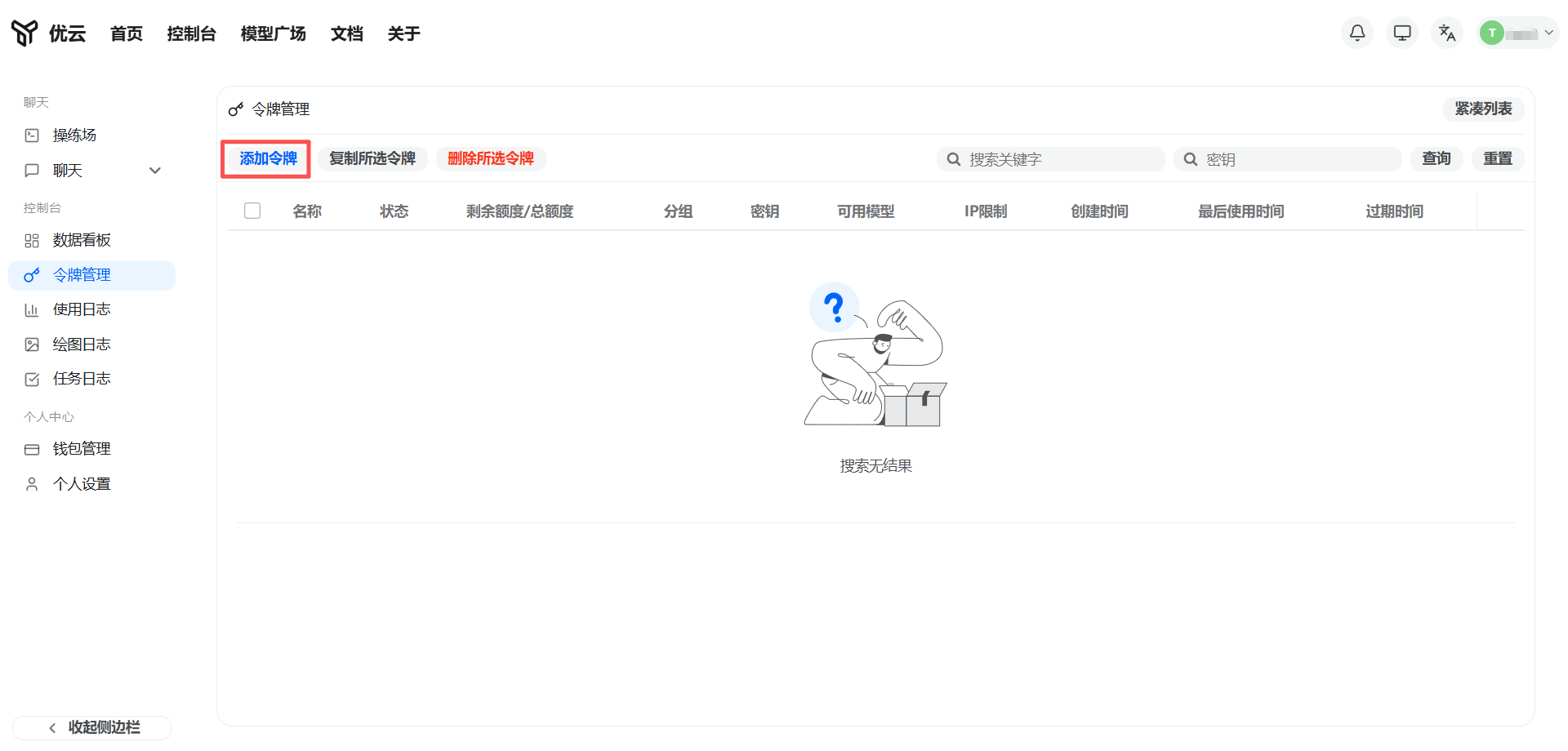
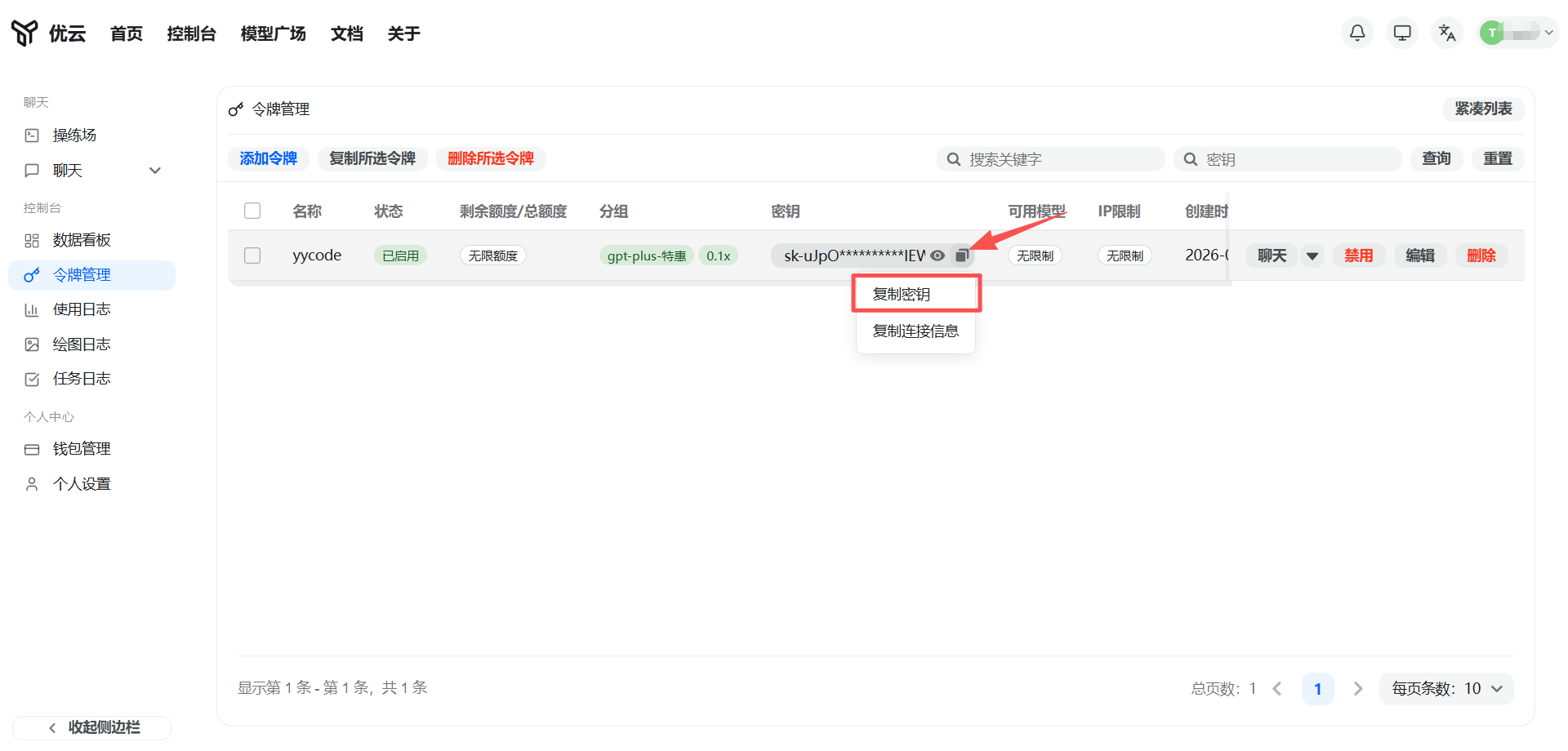
Log in to the yycode console, go to Token Management, and click Add Token.
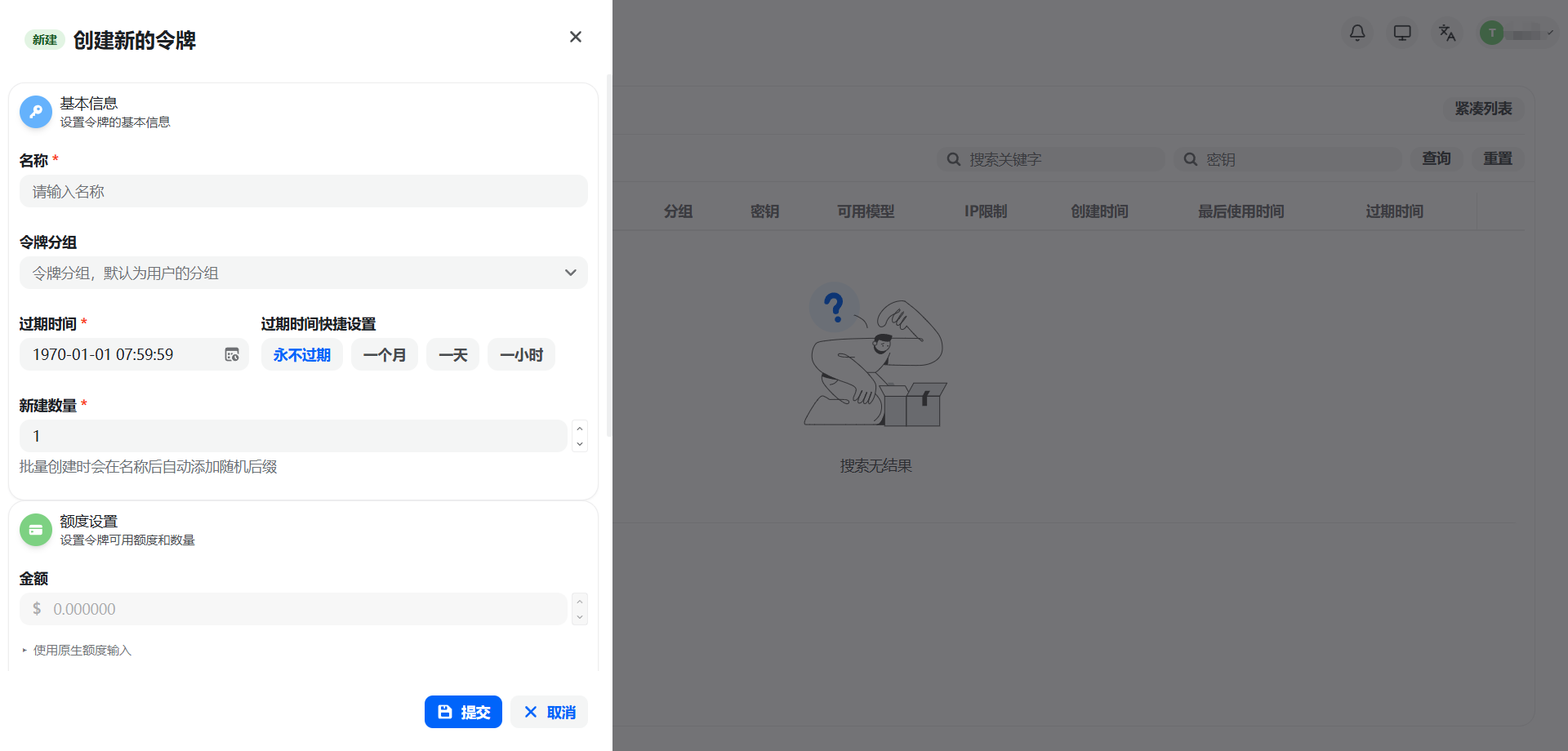
Enter a key name, select a group (model and multiplier), and optionally configure IP restrictions, quota limits, model restrictions, and expiration time. Beginners are advised to use the default settings.
Security note: An API Key is equivalent to account credentials. Keep it safe and never commit it to a code repository or share it publicly.
4. Import the Key
Click the Copy button next to the key to obtain the API Key.
You need to set the following two environment variables:
| Variable name | Value |
|---|---|
ANTHROPIC_BASE_URL |
https://yycode.net |
ANTHROPIC_AUTH_TOKEN |
Your API Key |
Temporary setup (valid for the current terminal session)
Windows (PowerShell):
$env:ANTHROPIC_BASE_URL = "https://yycode.net"
$env:ANTHROPIC_AUTH_TOKEN = "YOUR_API_KEY"
macOS / Linux:
export ANTHROPIC_BASE_URL="https://yycode.net"
export ANTHROPIC_AUTH_TOKEN="YOUR_API_KEY"
Persistent setup (still valid after restart)
Windows (PowerShell):
[System.Environment]::SetEnvironmentVariable("ANTHROPIC_BASE_URL", "https://yycode.net", [System.EnvironmentVariableTarget]::User)
[System.Environment]::SetEnvironmentVariable("ANTHROPIC_AUTH_TOKEN", "YOUR_API_KEY", [System.EnvironmentVariableTarget]::User)
macOS (Zsh):
echo 'export ANTHROPIC_BASE_URL="https://yycode.net"' >> ~/.zshrc
echo 'export ANTHROPIC_AUTH_TOKEN="YOUR_API_KEY"' >> ~/.zshrc
source ~/.zshrc
Linux (Bash):
echo 'export ANTHROPIC_BASE_URL="https://yycode.net"' >> ~/.bashrc
echo 'export ANTHROPIC_AUTH_TOKEN="YOUR_API_KEY"' >> ~/.bashrc
source ~/.bashrc
5. Skip Official Login
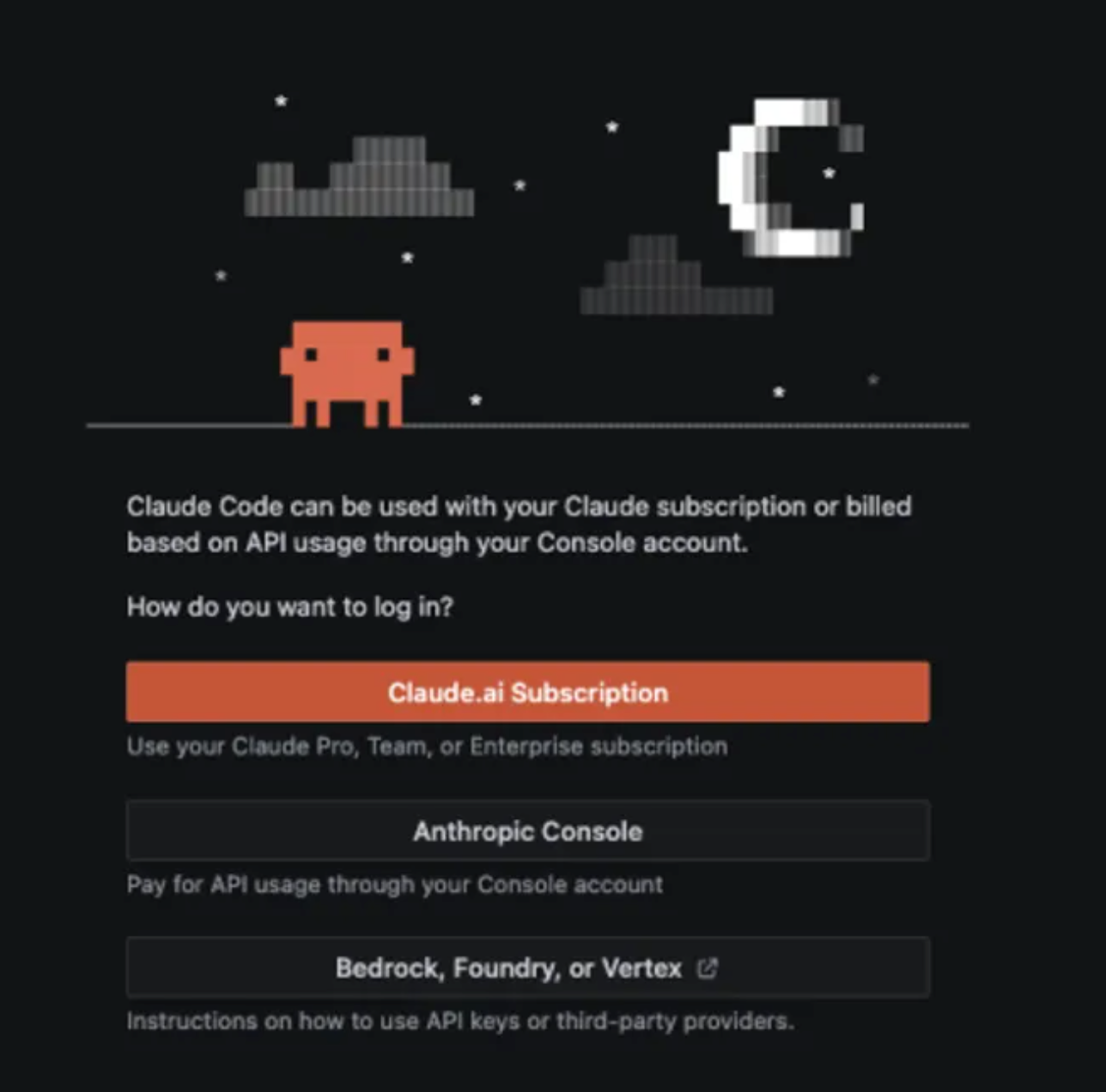
When opening the extension for the first time, the Anthropic official login page may appear and show three login methods.
Do not choose any of them -- wait 3-5 seconds and the page will disappear automatically. If the environment variables were configured in the previous step, the extension will automatically use Dragon Code's API Key and no login is required.
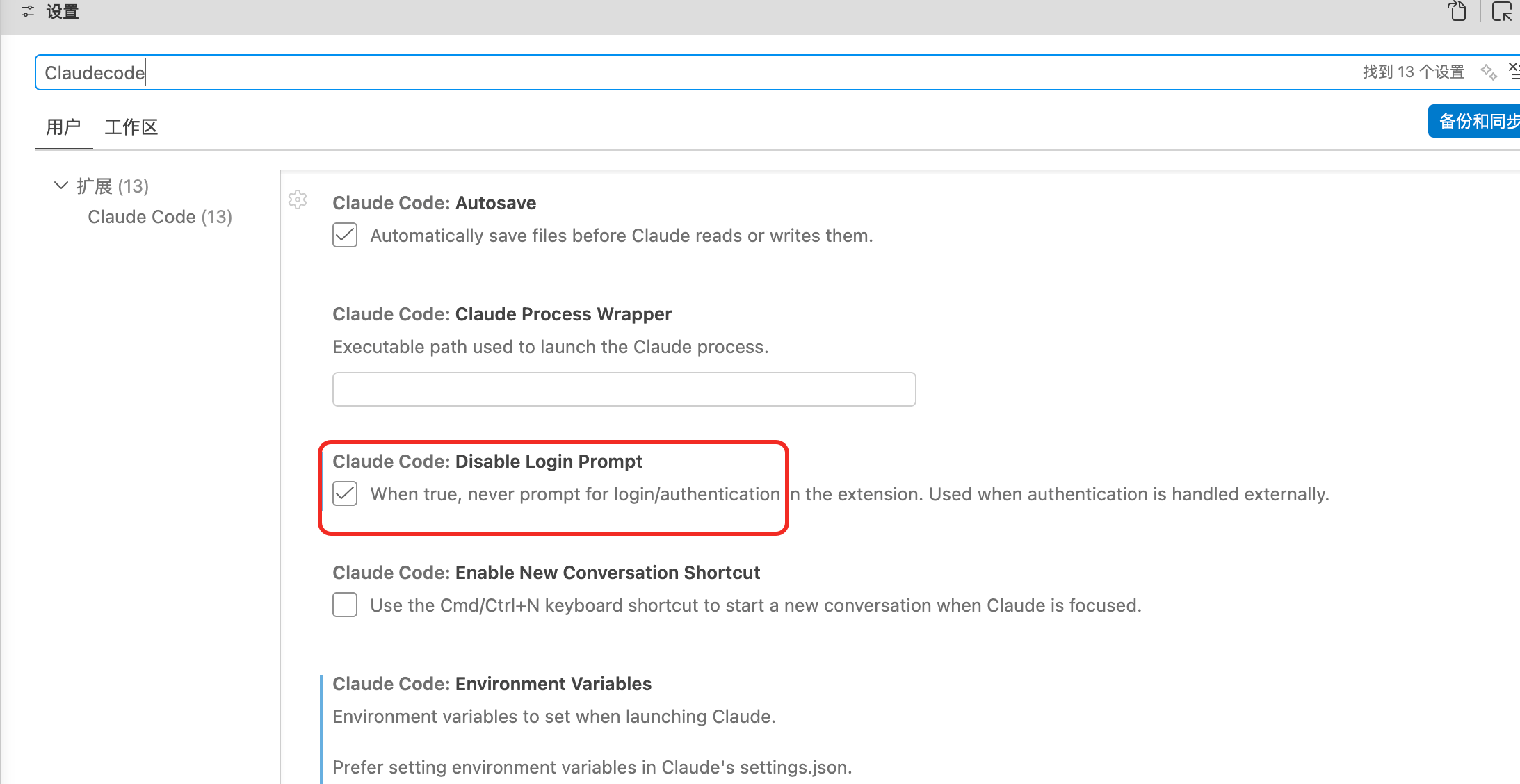
If the login page does not disappear automatically, click settings in the bottom-left corner, search for Claude code, and check Disable Login Prompt to close it manually.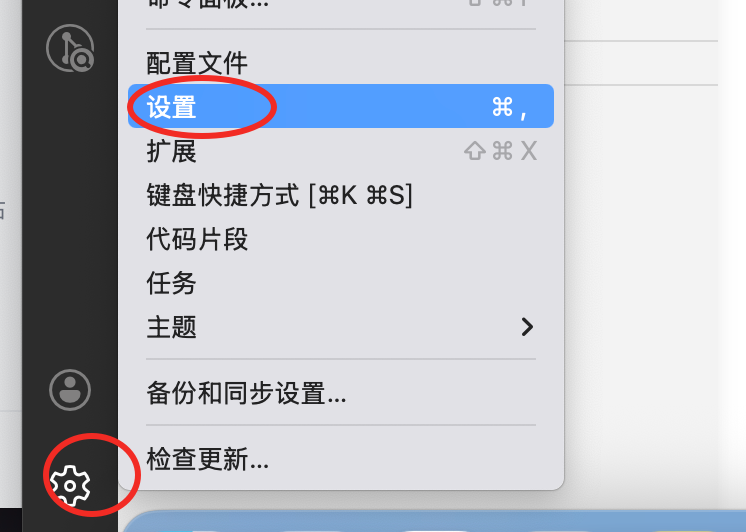
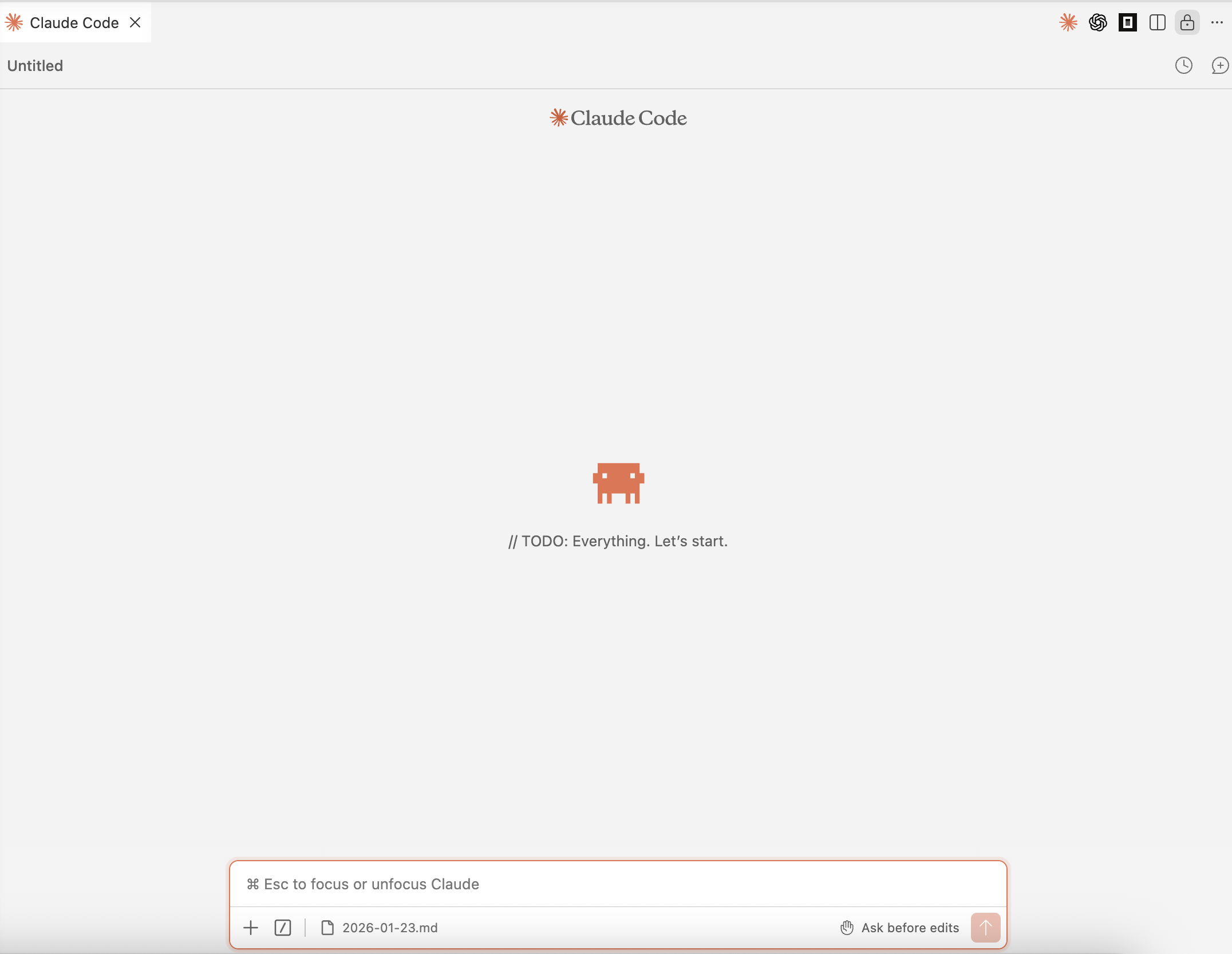
After successful configuration, the interface looks like this:
6. Start Using
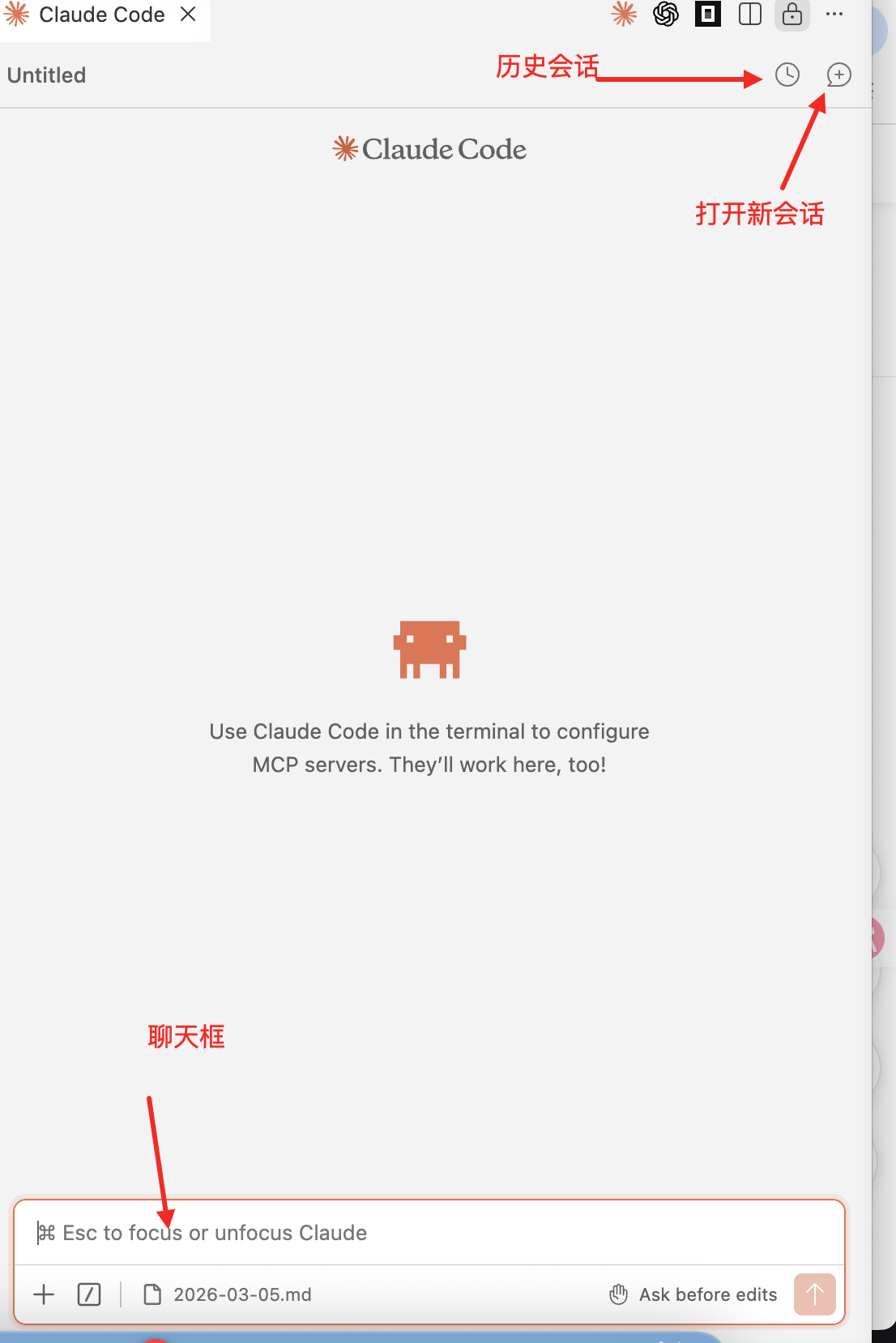
Describe your request in natural language in the input box and interact with Claude Code through conversation. The extension will automatically read and modify the code in the current project.
7. Tips
Three Operation Modes
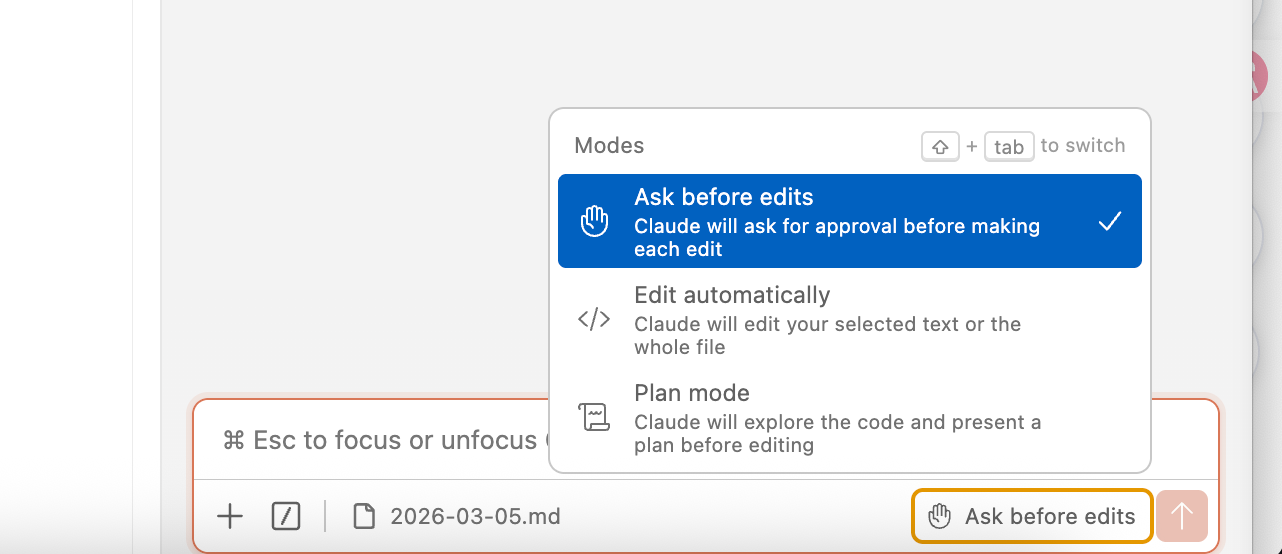
You can switch operation modes in the bottom-left corner:
1. Ask before edits
The most conservative mode. Claude shows each change first and asks for your confirmation before writing files. It is suitable when you are new to the tool or need to review each step for critical code changes.
2. Edit automatically
The most automated mode. Claude modifies code files directly without step-by-step confirmation. It is suitable when the requirement is already clear and you want changes implemented quickly. Note that changes may exceed expectations, so it is recommended to check Git diff afterward to confirm the change scope.
3. Plan mode
This mode does not modify code directly. It first scans the project structure and provides a complete modification plan and execution steps, then acts after your confirmation. It is suitable for complex tasks such as refactoring, multi-file linked changes, and architecture adjustments. Review the plan before acting to avoid uncontrolled large-scale changes.
Parallel Development with Multiple Windows
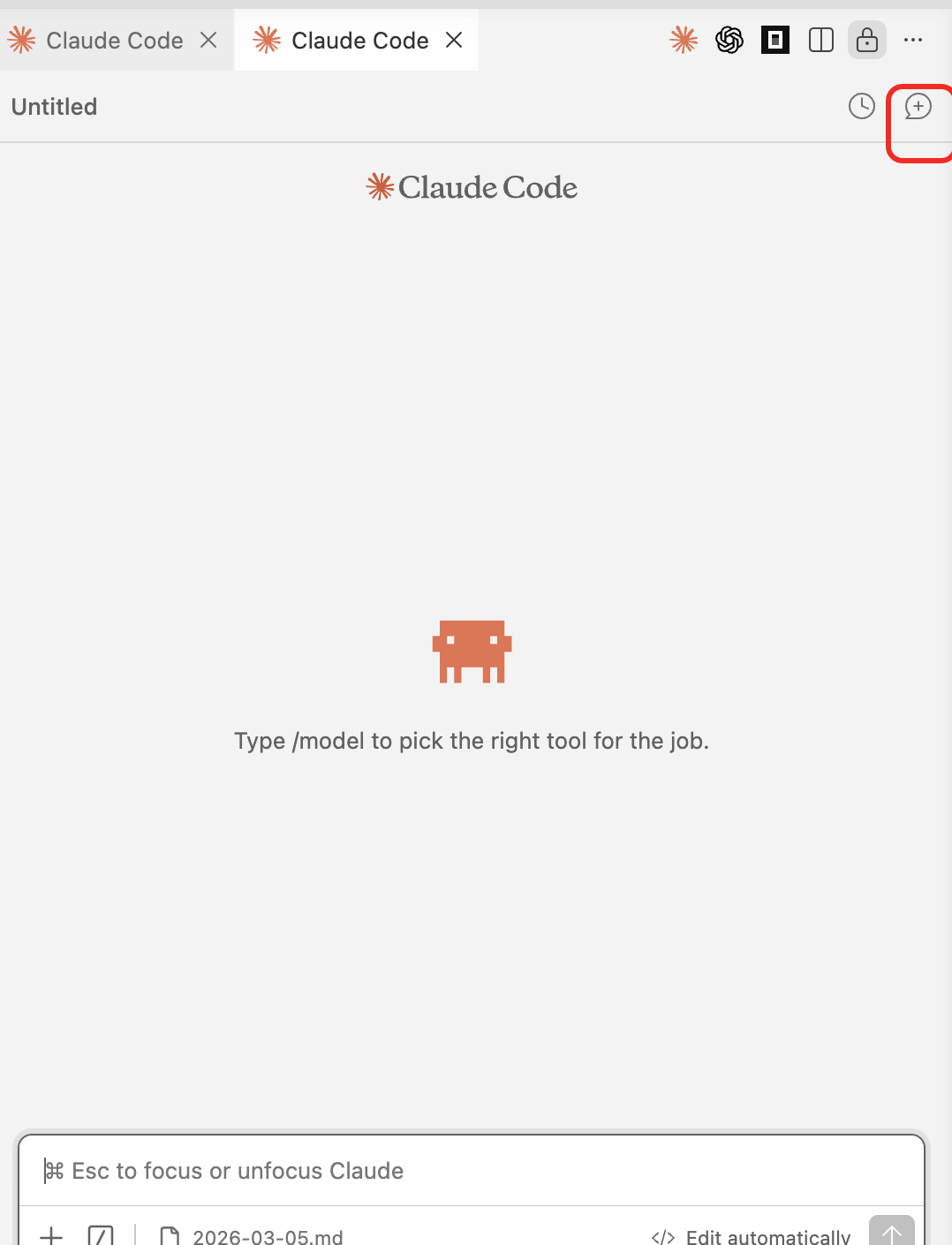
Click the + button in the top-right corner to open multiple Claude Code windows, for example one for development and one for testing.
Reference Project Files
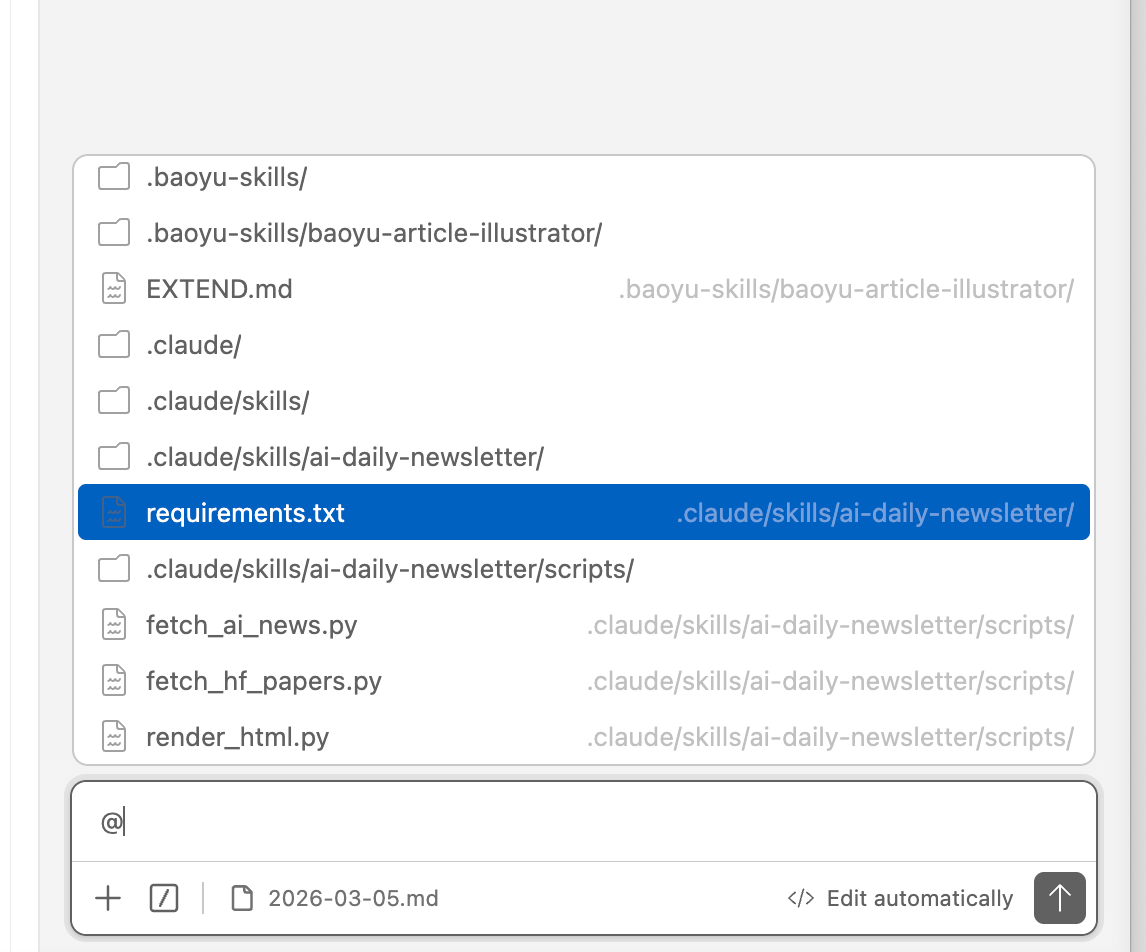
Enter @ in the input box and select a file name to pass the file content to Claude Code as context.
Upload Files
Enter /attach file and upload a file from the file picker.
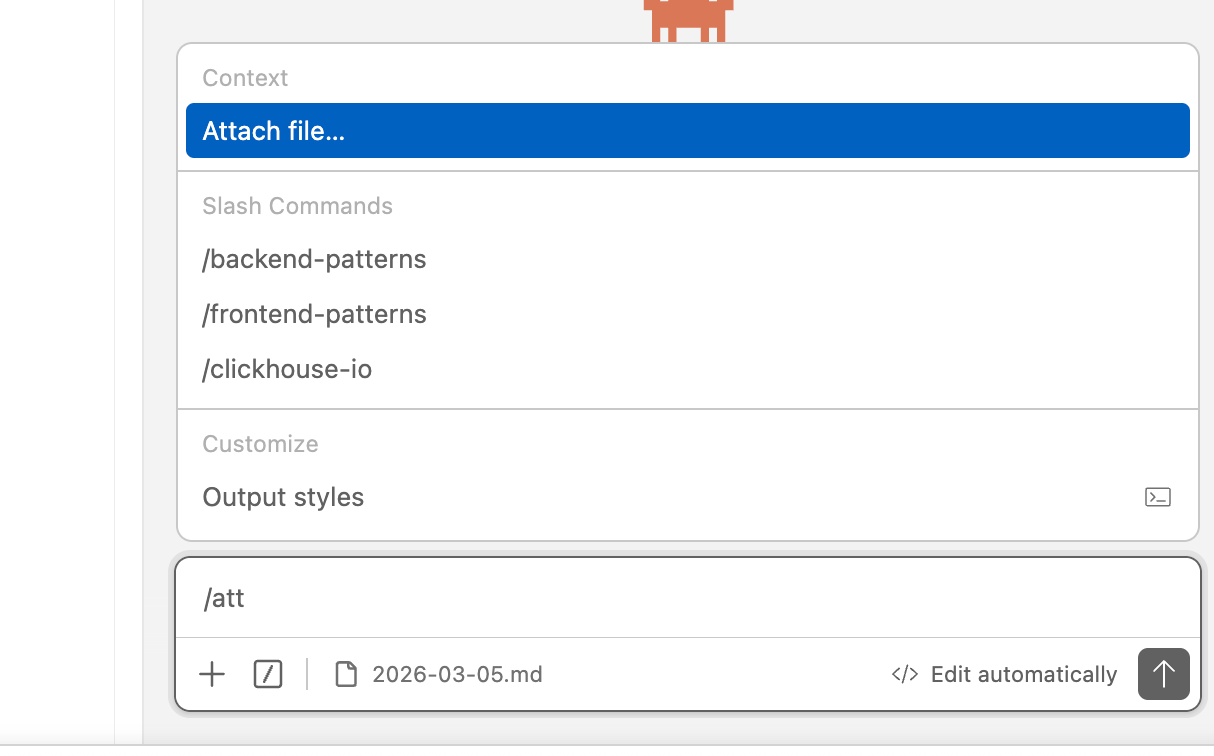
Note: The attachment icon in the bottom-right corner is for referencing files (adding context), not uploading files. Be careful to distinguish the two.
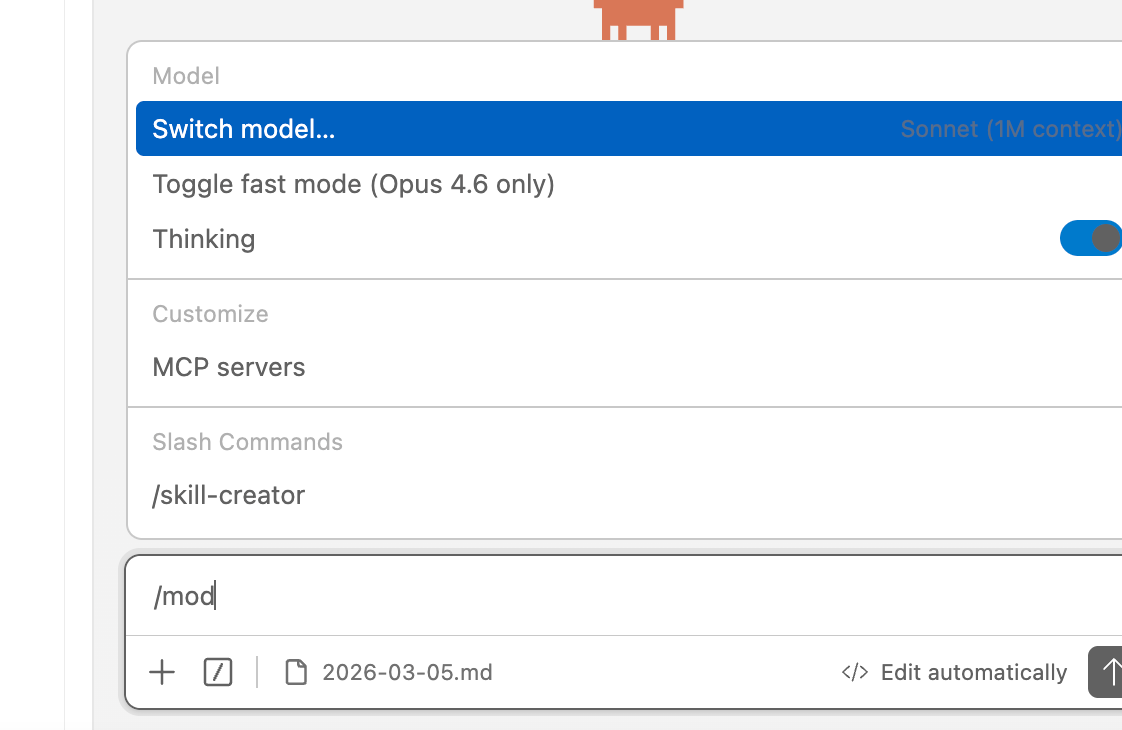
Switch Models
Enter /model, select Switch Model, and switch models as needed.
FAQ
Q: I cannot find the Claude Code icon after installing the extension.
A: Confirm the extension was installed successfully and try restarting VS Code. The icon is in the top-right editor toolbar.
Q: The login page keeps appearing and does not disappear.
A: Enter /config in the dialog and check Disable Login Prompt to disable the login prompt.
Q: The extension reports connection failure or a 401 error.
A: Check whether ANTHROPIC_BASE_URL is https://yycode.net, and whether ANTHROPIC_AUTH_TOKEN is correct and has not expired.
Q: How do I switch between different models or multipliers?
A: Create keys for different groups in the yycode console and use CC Switch to switch quickly between multiple configurations.
Q: Which VS Code version should I choose?
A: Mac users should choose based on chip: ARM64 for M-series chips, x64 for Intel chips. Windows users can download the default version directly.