
yycode x Codex Quick Start Guide
Prerequisite: Install the Node.js Environment
Codex depends on the Node.js runtime. Please first follow the Node.js Environment Installation Guide to install and verify it.
Easier Option: Automatic Configuration
If you do not want to manually install tools and write configuration item by item, we recommend using the Automatic Configuration Tool directly.
1. Install Codex
# Windows
npm install -g @openai/codex@latest

# macOS / Linux
sudo npm install -g @openai/codex@latest
Verify the installation:
codex --version
If a version number is printed, the installation was successful.
2. Create an API Key
Log in to the yycode console, go to Token Management, and click Add Token.
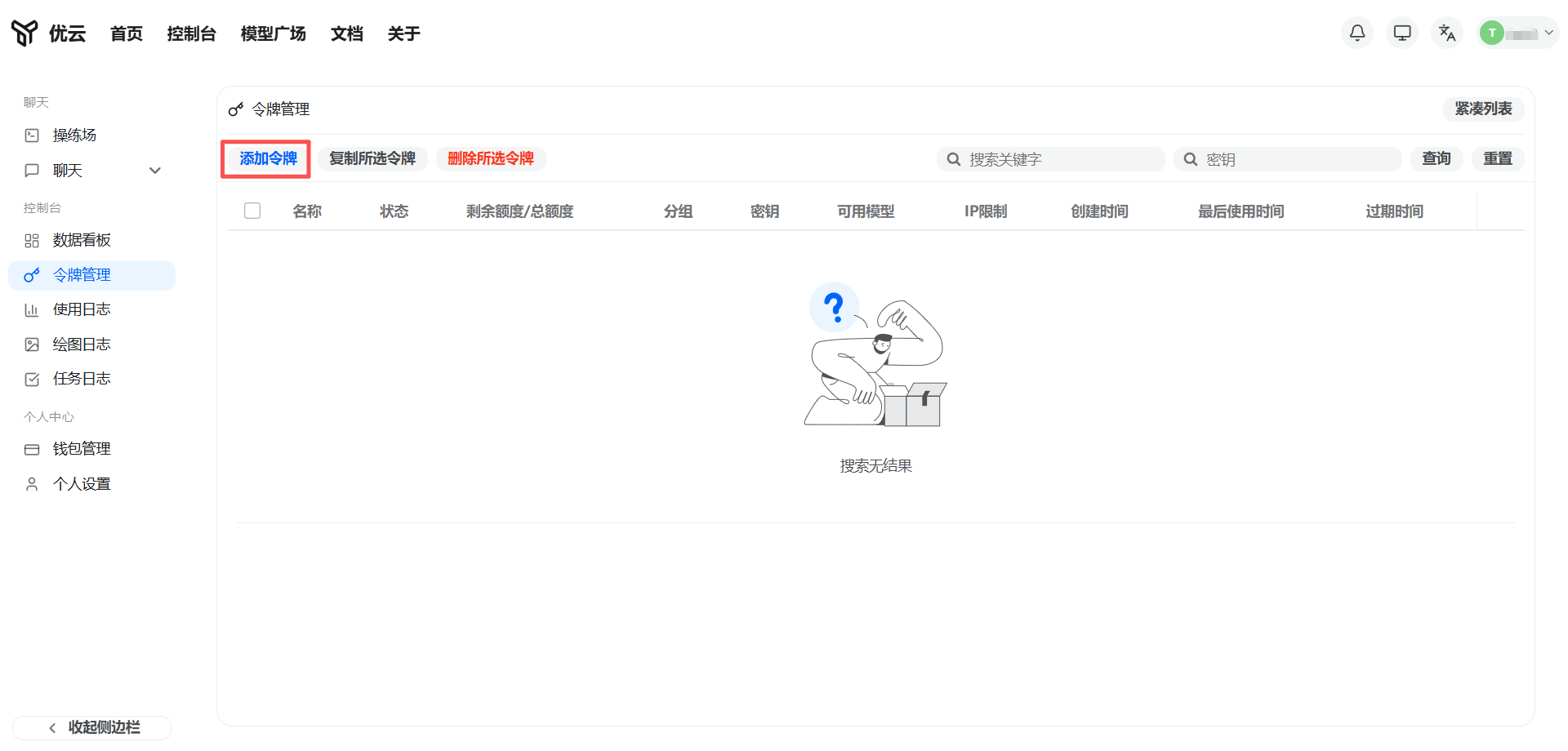
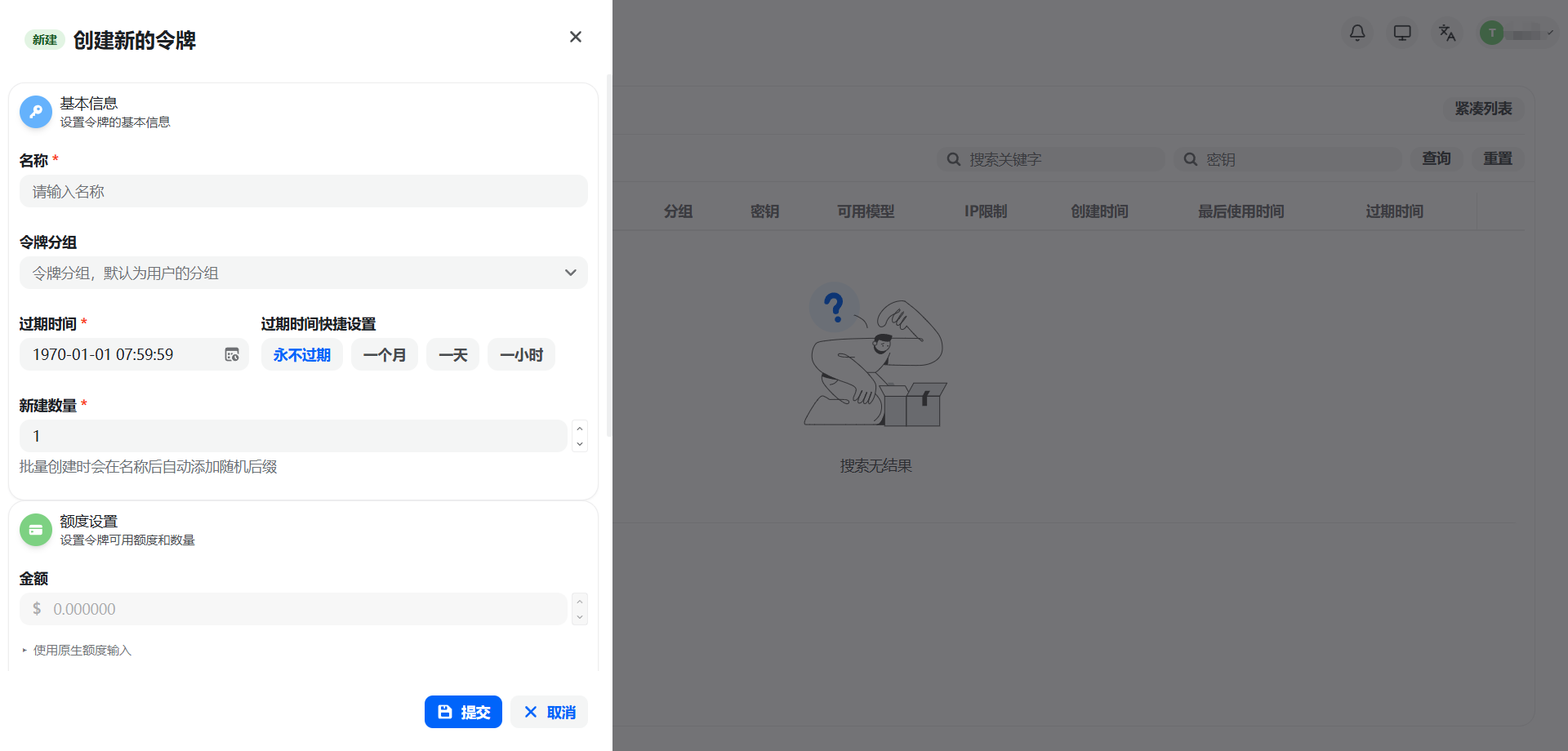
Enter a key name, select a Codex group (model and multiplier), and optionally configure IP restrictions, quota limits, model restrictions, and expiration time. Beginners are advised to use the default settings.
Security note: An API Key is equivalent to account credentials. Keep it safe and never commit it to a code repository or share it publicly.
3. Import the Key into Codex
Create the configuration directory
# Windows (PowerShell)
if (Test-Path "$env:USERPROFILE\.codex") { Remove-Item -Recurse -Force "$env:USERPROFILE\.codex" }
mkdir "$env:USERPROFILE\.codex"
# macOS / Linux
rm -rf ~/.codex && mkdir -p ~/.codex
Create config.toml
Create config.toml under ~/.codex/ (on Windows: %USERPROFILE%\.codex\):
model = "gpt-5.5"
model_provider = "yycode"

[model_providers.yycode]
name = "yycode New API"
base_url = "https://yycode.net/v1"
wire_api = "responses"
requires_openai_auth = true
Create auth.json
Click the Copy button next to the key to obtain the API Key:
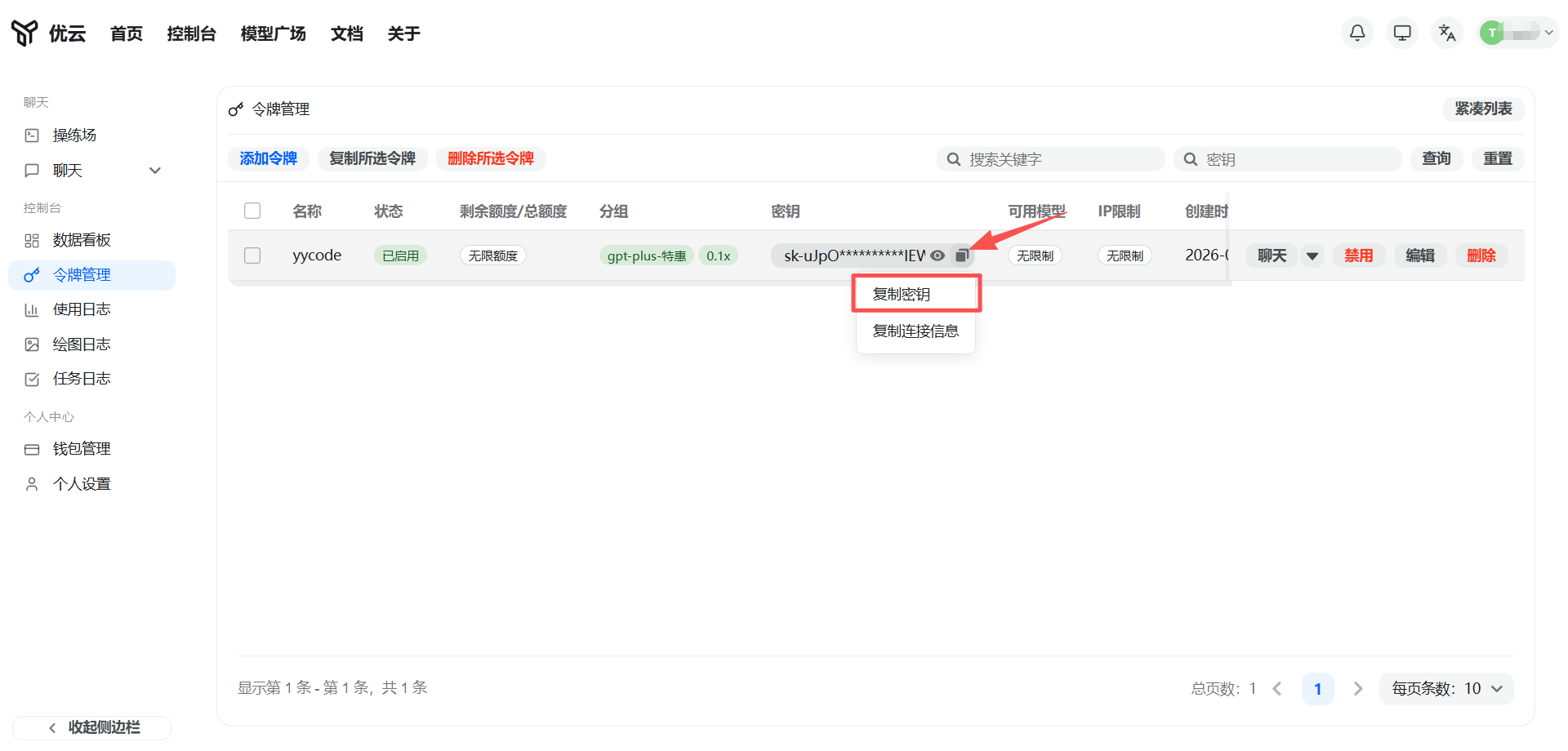
Create auth.json in the same directory and replace YOUR_API_KEY with the key you created in the console:
{
  "auth_mode": "apikey",
  "OPENAI_API_KEY": "这里填你在平台创建的 API Key"
}
4. Start Using
Enter any project directory and run:
codex
Codex will automatically analyze the code in the current directory and provide intelligent programming assistance. For more usage details, see the official OpenAI documentation.
FAQ
Q: npm install -g reports insufficient permissions. What should I do?
A: On macOS / Linux, add sudo before the command. On Windows, run PowerShell as Administrator.
Q: codex --version says the command does not exist.
A: Make sure the npm global directory has been added to the system PATH. You can run npm bin -g to view the path and add it manually.
Q: Connection failed or a 401 error is returned.
A: Check whether base_url in config.toml is https://yycode.net, and whether the API Key in auth.json is correct and has not expired.
Q: How do I switch between different models or multipliers?
A: Create keys for different groups in the yycode console, update the Key in auth.json, or use CC Switch to switch quickly between multiple configurations.