Dragon Code x Cherry Studio Quick Start Guide
Applicable Scenario
This document solves one thing only: connect Cherry Studio to the Dragon Code gateway and complete one usability check.
One-sentence Quick Start
You only need to fill in these 3 items:
- Base URL:
https://dragoncode.codes - API Key: the key you obtained from Dragon Code
- Model ID: for example
claude-opus-4-6
Not sure what to fill in? Follow the steps below one by one.
1. Preparation
Before you begin, make sure:
- Cherry Studio is installed
- You have registered a Dragon Code account
- You have obtained an API Key (in the form
sk-xxxx)
Create an API Key
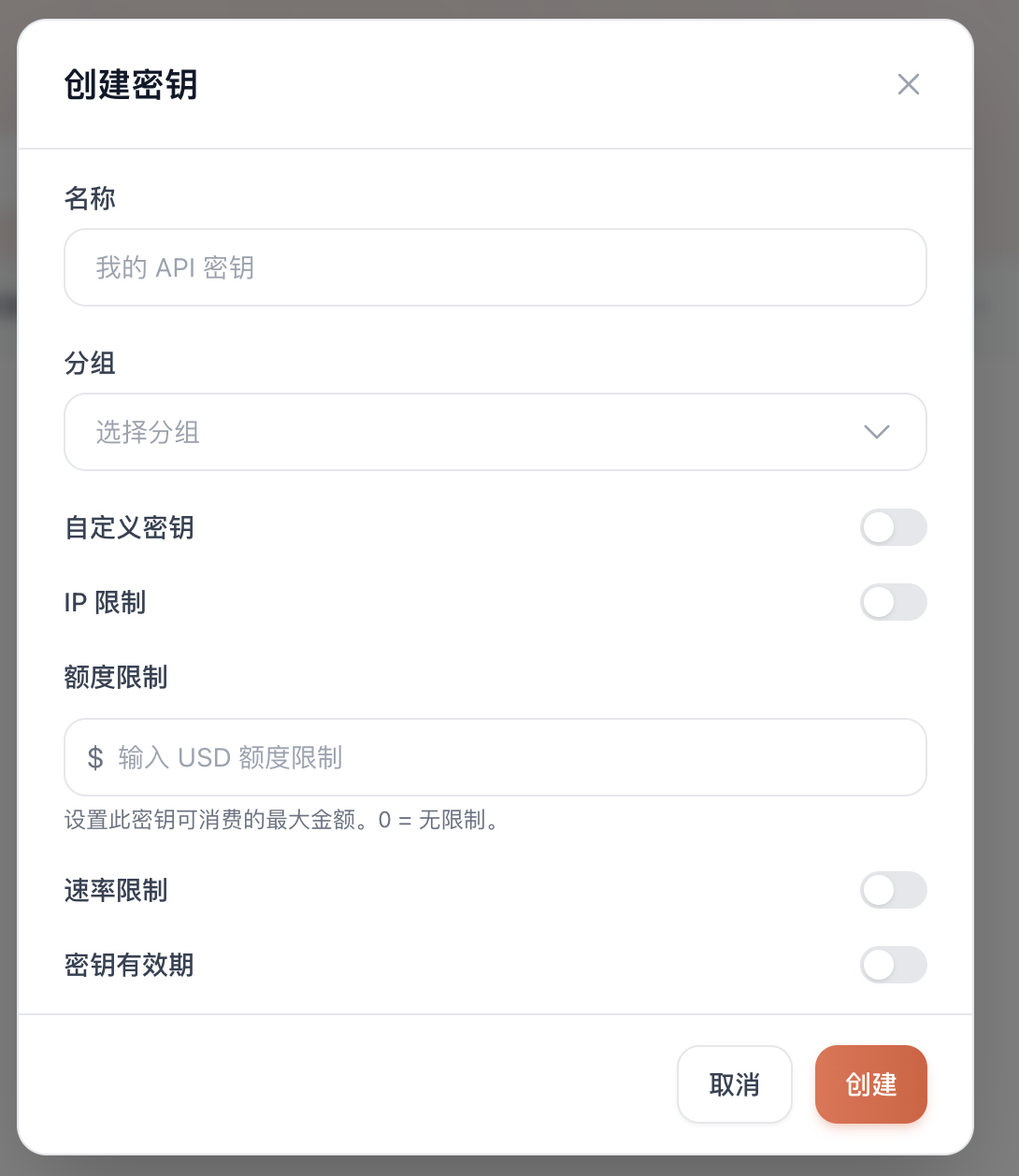
Log in to the Dragon Code console. In the left sidebar, go to API Keys -> click Create Key.
- Name: anything is fine, such as
dragoncode - Group: choose according to the tool you want to use
- Use Codex (OpenAI tool) -> choose the
codexgroup - Use Claude Code (Anthropic tool) -> choose the corresponding Claude group
- Use Codex (OpenAI tool) -> choose the
- Other fields can remain at their defaults
- Click Create
After creation, click the copy button in the list to get the full API Key.
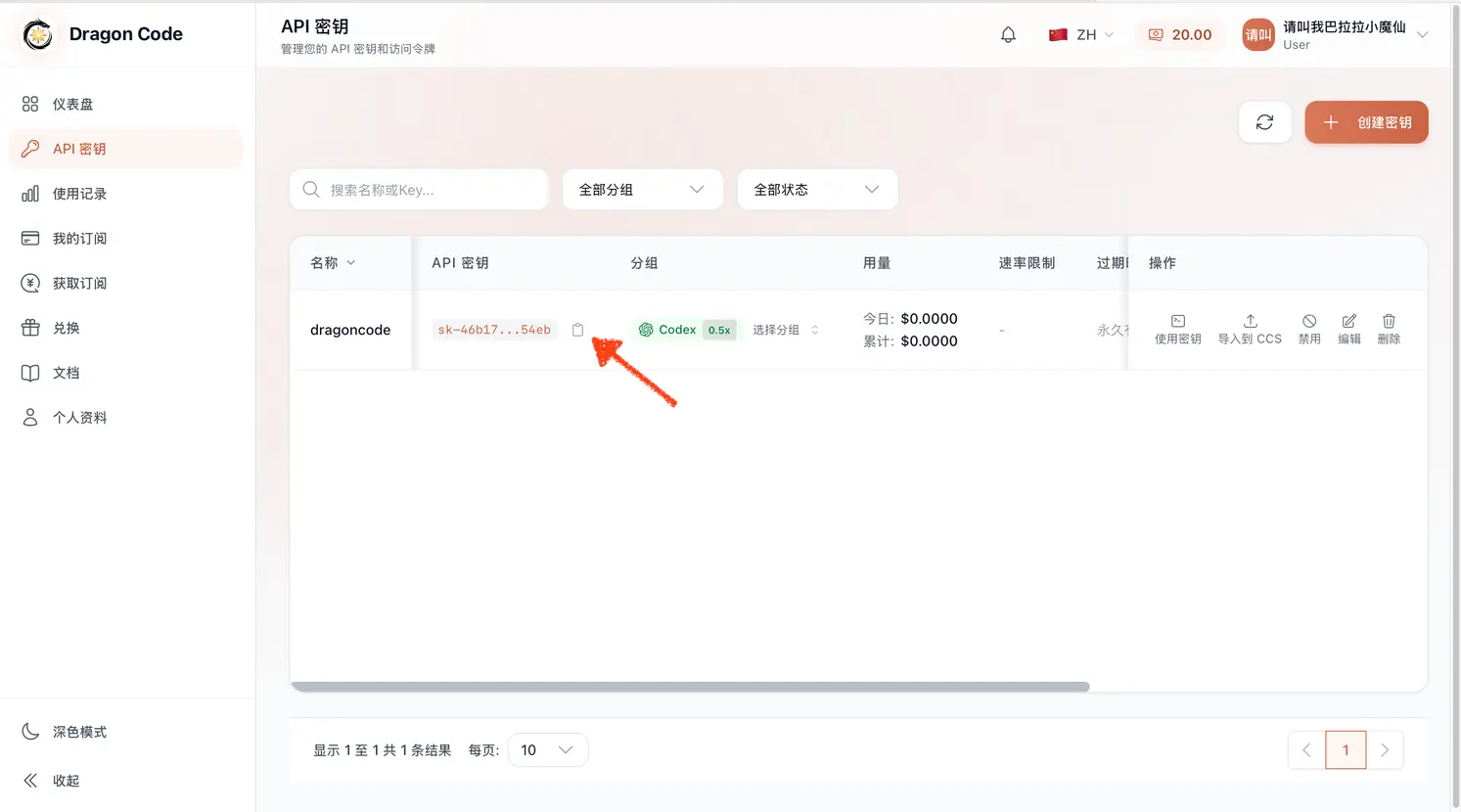
How to Confirm the API Key Is Correct
- You can see this Key in the Dragon Code backend
- After copying, it is a complete string with no spaces or truncation
Common Sticking Points
- No API Key -> cannot use the service
- One character missing when copied -> returns
401 - Base URL written incorrectly -> returns
404/400
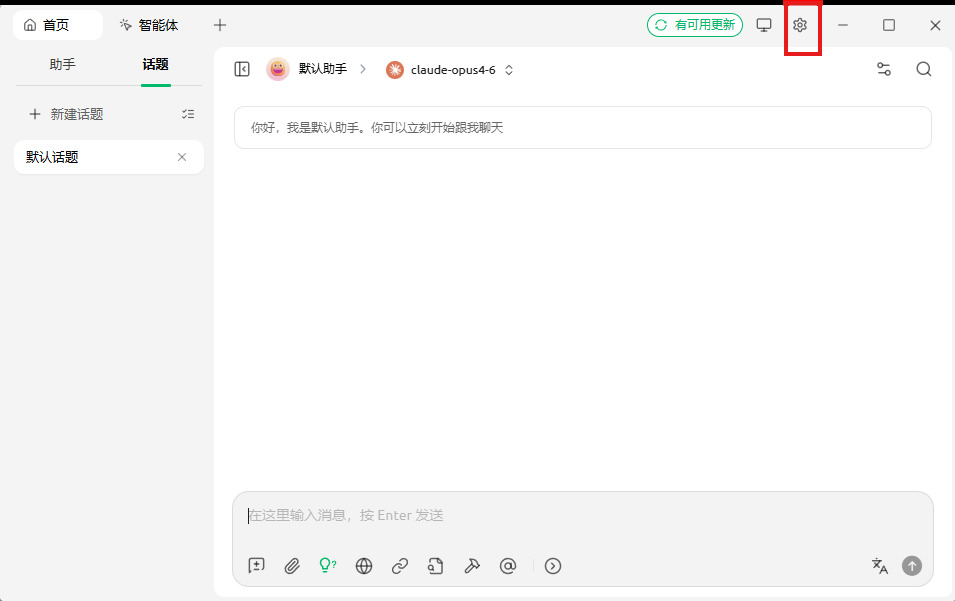
2. Open Cherry Studio Settings
- Open Cherry Studio
- Click Settings in the bottom-left / top-right corner
3. Add the Dragon Code Provider
Click + Add in model services
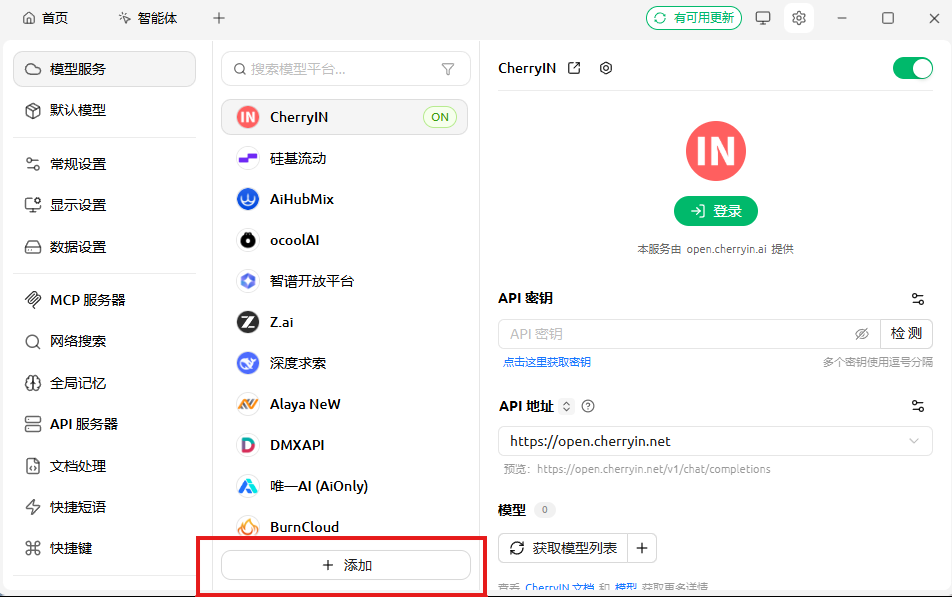
The provider name can be anything, for example
dragoncode.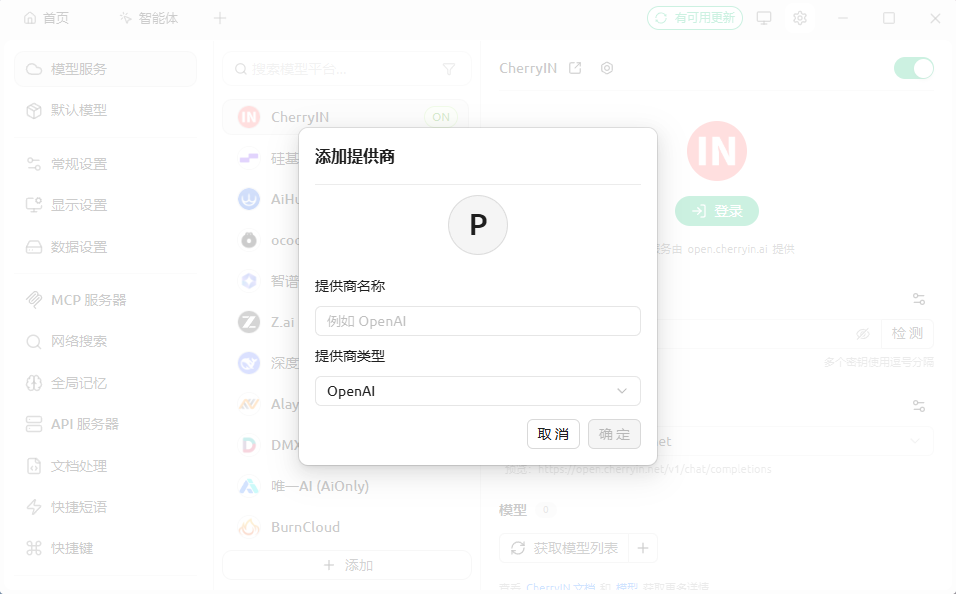
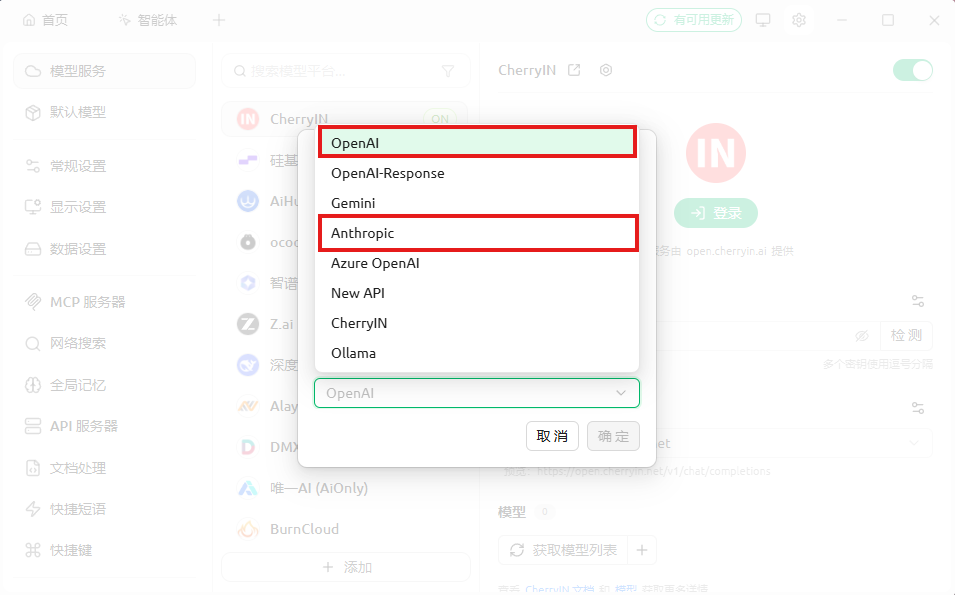
Select provider type
Cherry Studio supports both OpenAI and Anthropic provider types. Choose according to the model family you want to use.
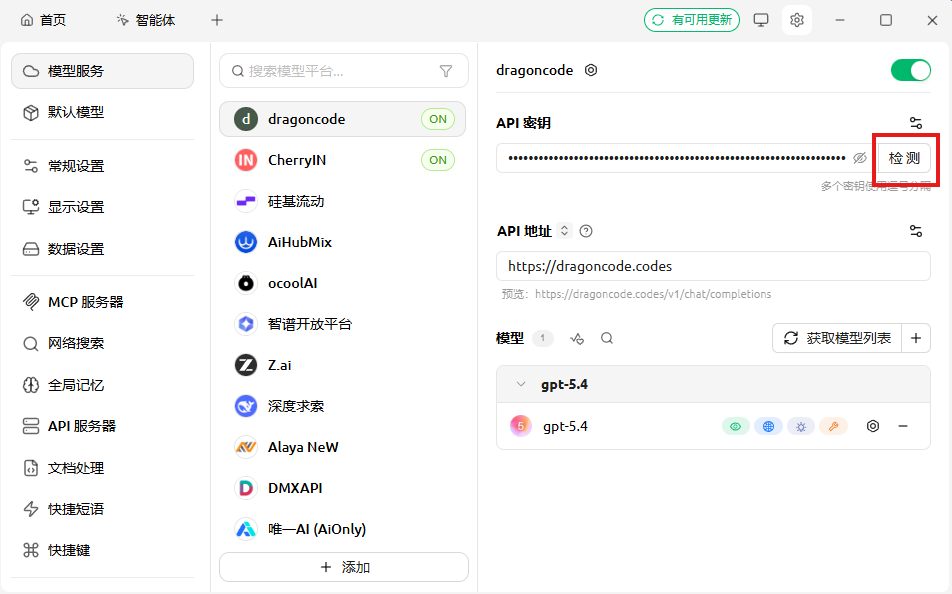
Fill in the API Key and API address (the screenshot below uses OpenAI as an example)
- API Key: the API Key you created in Dragon Code
- API Address:
https://dragoncode.codes
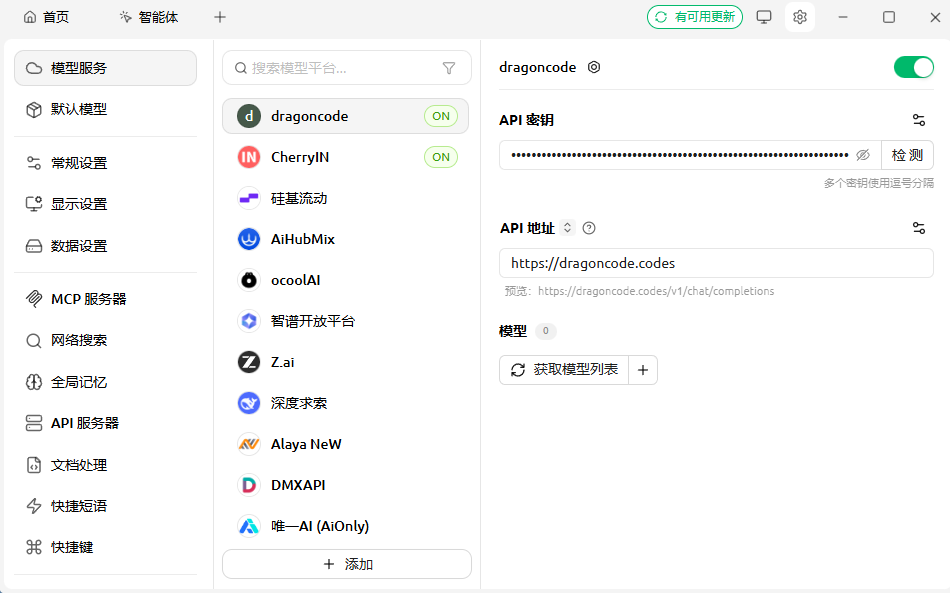
Note: The API Key must match the group. The OpenAI type can only use a Key created under the
codexgroup, and the Anthropic type can only use a Key created under a Claude group.Add models (OpenAI and Anthropic types require their respectively supported model IDs)
Supported Models
OpenAI-compatible Models
| Model name |
|---|
gpt-5.4 |
gpt-5.2 |
gpt-5.3-codex |
Anthropic-compatible Models
| Model name |
|---|
claude-opus-4-6 |
claude-sonnet-4-6 |
The model ID must be exactly the same as the one supported by Dragon Code. Case and hyphens must match.
Add a Model
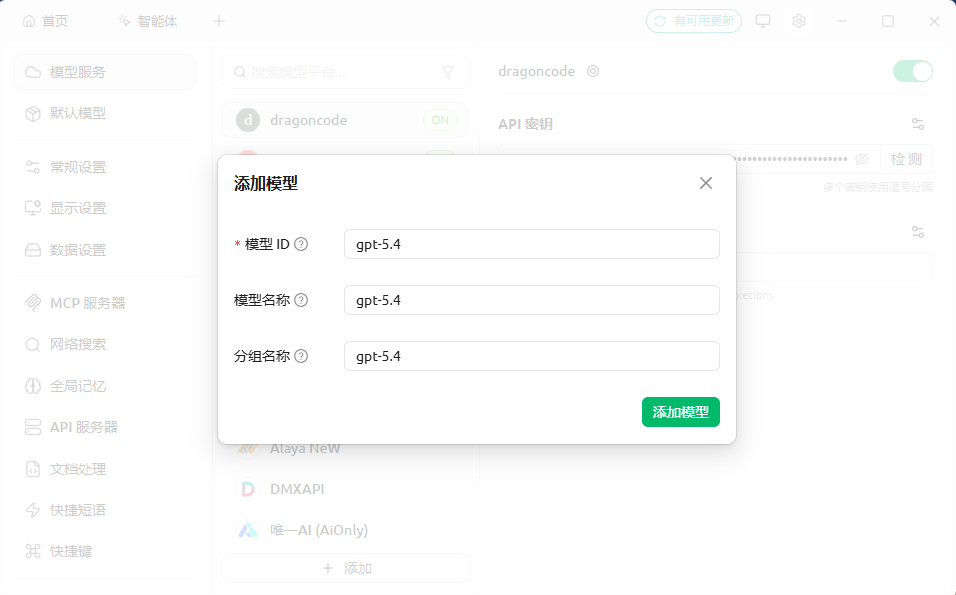
After adding it, click Check. When it reports success, proceed to the next step.
4. Start Chatting (Verify Access)
Create a new chat
Select the model you just added
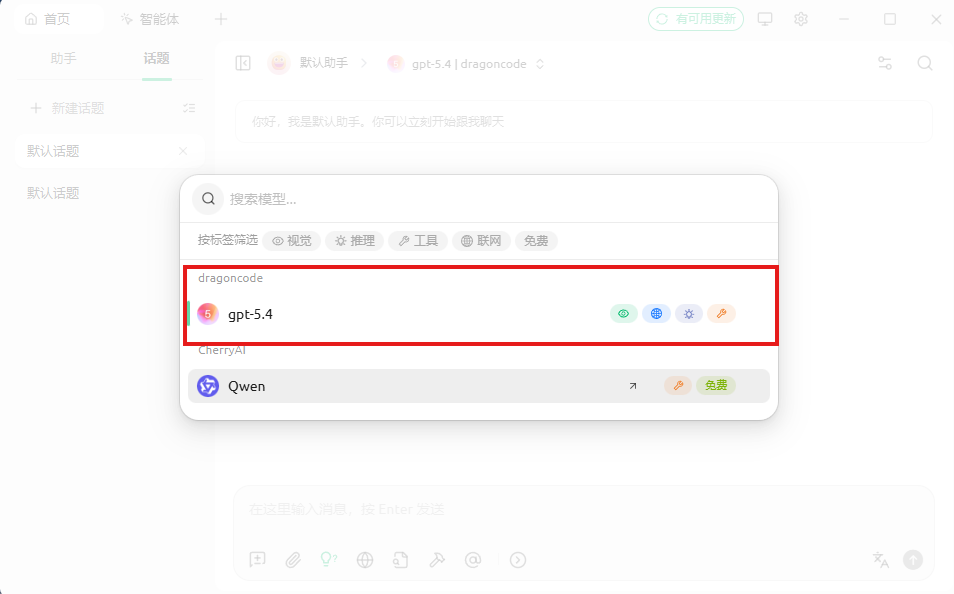
Enter:
你好
Success Indicator
If the model replies normally, the connection is successful.
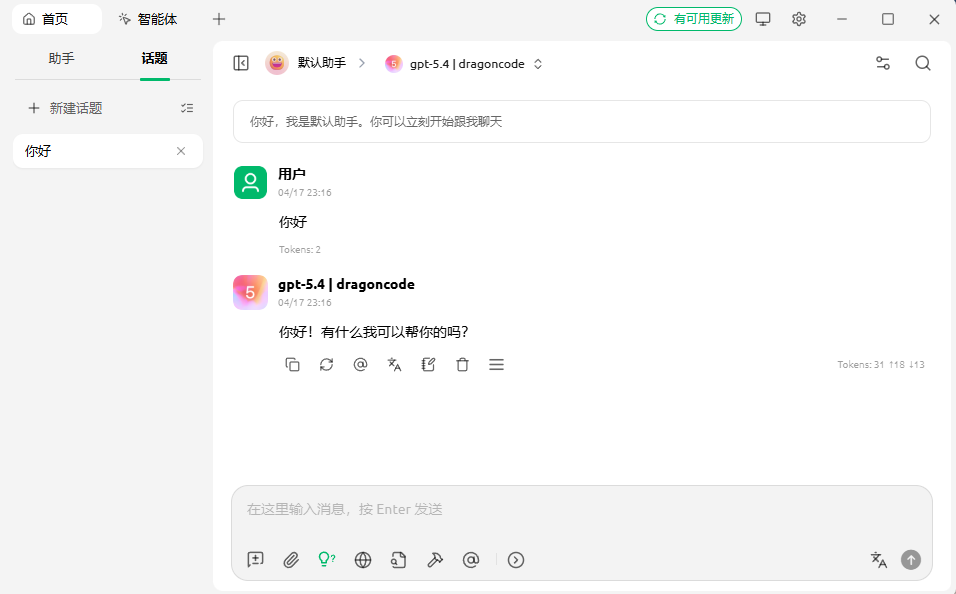
If there is no reply or an error appears, refer to the troubleshooting table below.
5. Error Troubleshooting
Match the error you see with the corresponding item below.
503 Service temporarily unavailable
- Meaning: The current model route is unavailable or too congested
- Solution: Retry, or switch to another model (recommended)
502 Bad gateway
- Meaning: Dragon Code failed to connect to upstream Claude / GPT
- Solution: Wait 1-2 minutes and try again, or switch models
AI_RetryError
- Meaning: Automatic retry failed after 3 attempts (usually a 502 / 503 underneath)
- Solution: Same as above: switch models or retry later
401 / 403
- Meaning: API Key is wrong or does not match the group
- Solution: Copy the Key again and confirm that the provider type matches the Key group
400
- Meaning: Model ID or URL is wrong
- Solution: Check
- Whether the API address is
https://dragoncode.codes - Whether the model ID is in the Supported Models list
- Whether the API address is
Keeps Spinning / Stuck
- Meaning: Network, streaming connection, or model exception
- Solution: Start a new chat, restart Cherry Studio, or switch model/group
6. One-minute Self-check
90% of issues are in this table.
| Item | Correct value |
|---|---|
| Base URL | https://dragoncode.codes |
| API Key | sk-xxxx (complete, no spaces) |
| Model ID | Must be in the supported list |
| Group and type | OpenAI <-> codex group; Anthropic <-> Claude group |